

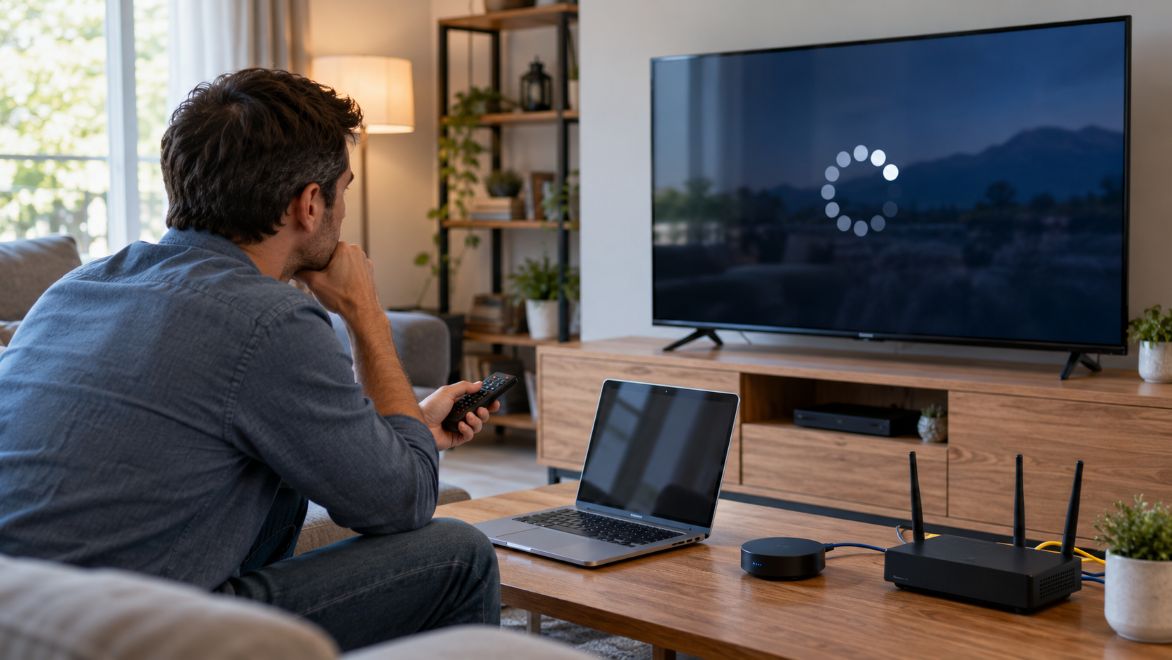
IPTV streaming problems can interrupt television viewing even when an internet connection appears to be working normally. Buffering, frozen screens, delayed channel loading, audio synchronization problems, and unexpected disconnections are common complaints. These issues may result from weak Wi-Fi signals, network congestion, outdated applications, or temporary service interruptions. Identifying the actual cause is the first step toward reliable streaming.
Application compatibility also plays an important role in playback quality. For example, a guide to the best Canadian IPTV apps explains how installation requirements, supported players, and device compatibility affect IPTV viewing on Apple TV and macOS. Understanding these differences helps users distinguish application problems from network-related failures.
Why IPTV Streaming Problems Occur
Internet Protocol Television delivers video through internet networks rather than traditional broadcasting systems. Live channels require a continuous flow of data. When that flow becomes unstable, viewers may experience interruptions, reduced picture quality, or delayed playback.
Streaming performance depends on several connected systems. These include the internet service provider, home router, streaming device, application, and content server. A problem with any component can affect the viewing experience.
Apple Support explains that streaming quality may decline when multiple household members use the same internet connection. Its guidance recommends checking network conditions and restarting affected devices when playback becomes unreliable.
How to Diagnose and Fix Common IPTV Network Problems
Effective troubleshooting starts with simple tests before moving toward advanced network settings. Follow these seven steps in order. Change one setting at a time and test playback afterward. This approach helps identify which adjustment makes a difference.
1. Test Internet Speed and Connection Stability
Start by measuring your connection speed using a reliable testing service such as Fast.com. Run several tests during different periods, especially when streaming problems occur.
Netflix recommends at least 3 Mbps for 720p video, 5 Mbps for 1080p, and 15 Mbps for 4K streaming. These figures apply to Netflix and serve as general reference points. IPTV requirements vary depending on video compression, resolution, and provider specifications.
Speed alone does not guarantee smooth playback. High latency, packet loss, and fluctuating bandwidth can interrupt live streams. Repeated measurements help reveal problems that a single speed test might miss.
2. Check Wi-Fi Signal Strength and Router Placement
Weak wireless signals can cause buffering even when your broadband subscription provides sufficient speed. Walls, metal objects, electronic equipment, and long distances may reduce wireless performance.
Apple Support recommends keeping Apple TV and the wireless router reasonably close together while avoiding physical obstructions. Moving devices closer can help determine whether signal strength contributes to playback problems.
Place your router in a central, elevated location. Avoid enclosing it inside cabinets. If your router supports multiple frequency bands, compare their performance. The 5 GHz band often provides faster connections nearby, while 2.4 GHz generally offers greater coverage.
3. Compare Wireless and Ethernet Connections
Wi-Fi offers convenience, but a wired connection can remove several sources of wireless interference. Ethernet is particularly useful for stationary streaming devices.
Connect your television box, compatible Apple TV model, or computer directly to the router using an Ethernet cable. Stream the same channel and observe whether buffering continues.
Apple Support recommends Ethernet as a troubleshooting option for supported Apple TV hardware. If playback improves over a wired connection, the original problem may involve wireless interference, router placement, or Wi-Fi congestion.
Not every streaming device includes an Ethernet port. Check hardware specifications before attempting a wired connection.
4. Examine Network Congestion and Bandwidth Usage
Several connected devices can compete for available bandwidth. Large downloads, cloud backups, video meetings, and simultaneous streaming sessions may affect IPTV performance.
Check your router’s administration dashboard to identify devices consuming substantial bandwidth. Temporarily pause unnecessary downloads and test your television stream again.
Some routers include Quality of Service settings that help prioritize selected applications or devices. These controls may improve performance during congestion, although results depend on the router and network configuration.
If interruptions occur mainly during busy evening hours, compare performance at quieter times. Persistent slowdowns may require assistance from your internet provider.
5. Verify Application Updates and Device Compatibility
Outdated streaming applications may contain bugs that affect playback, channel loading, or audio synchronization. Operating system updates can also change how applications interact with streaming services.
Check whether your IPTV player supports the device’s current operating system. Install available updates from trusted sources and restart the application afterward.
On Apple TV, review software updates through the device settings. Mac users should check application requirements and supported video formats. Understanding the process of setting up IPTV streaming across different devices can also help users identify compatibility issues, configure playback settings, and avoid common installation errors.
If problems affect only one application, try another compatible, authorized player when your service permits it. Persistent audio delays may also require checking the application’s audio settings or changing the output format.
6. Review DNS Settings and Potential Routing Issues
The Domain Name System translates website and service names into IP addresses. Incorrect DNS settings can prevent applications from locating their required servers.
Cloudflare explains that DNS resolvers perform this translation and allow devices to connect with internet resources. Most home networks use DNS servers configured automatically by their internet providers.
Review your router’s DNS configuration if channels fail to load or connection errors appear. Check for incorrect addresses before considering alternative resolvers.
DNS changes cannot automatically fix buffering caused by insufficient bandwidth. Persistent routing problems may require investigation by your internet provider or streaming service.
7. Restart Network Equipment and Check for Service Disruptions
Temporary software faults and connection failures sometimes disappear after restarting network equipment. Restart the streaming application first, followed by the device itself.
If problems continue, restart your router and modem according to their manufacturer’s instructions. Allow both devices to reconnect fully before testing playback.
Apple Support recommends checking service status information when streaming remains unavailable. Internet providers often publish outage notices through official websites or applications.
When other internet services work normally but one IPTV provider remains unavailable, contact that provider to check for server disruptions or account-related issues.
Maintaining a Stable Home Streaming Network
Preventive maintenance reduces the likelihood of recurring playback problems. Keep router firmware updated, install application patches, and review connected devices periodically.
The Federal Trade Commission recommends updating router software and using modern Wi-Fi security settings. These practices support network security and help address known software vulnerabilities.
Households with several streaming devices should monitor bandwidth demand and consider wired connections for stationary equipment. Avoid unnecessary configuration changes once the network performs reliably.
Conclusion
Reliable IPTV streaming depends on stable internet connectivity, compatible applications, and properly maintained network equipment. Most common problems can be investigated through speed tests, Wi-Fi checks, wired connections, and software updates.
As households connect more entertainment devices, regular network maintenance will become increasingly important. A systematic troubleshooting approach helps users identify problems accurately, avoid unnecessary equipment purchases, and maintain a more consistent television viewing experience.