

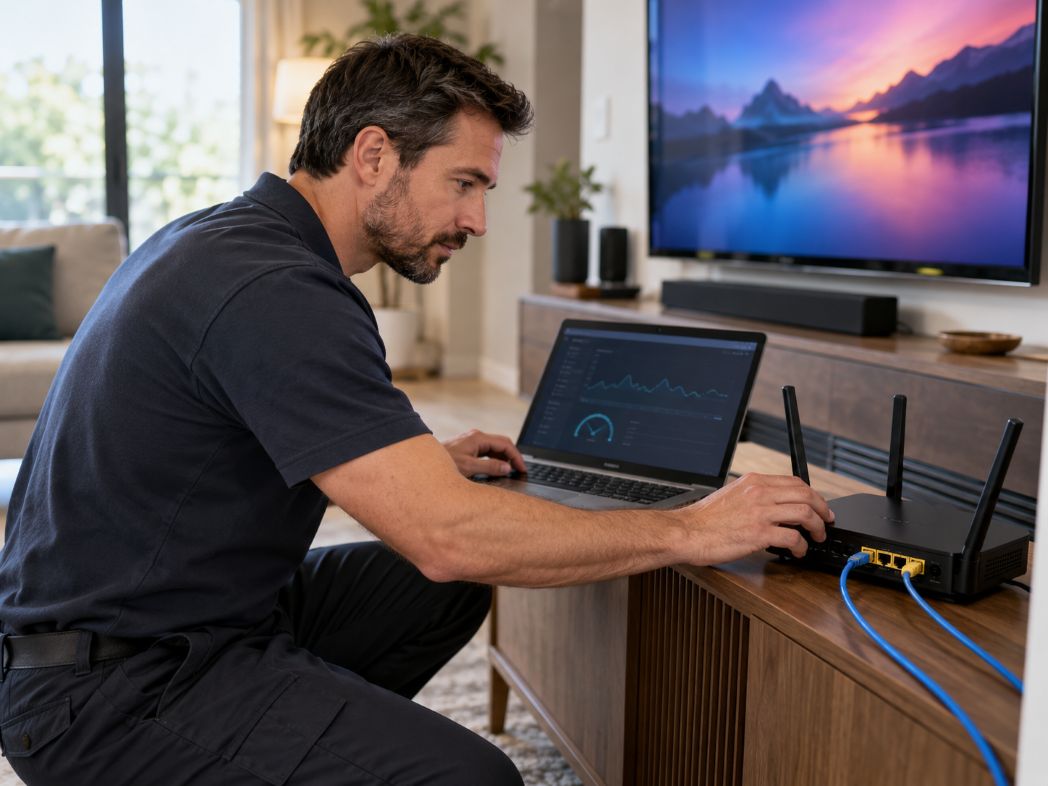
Internet Protocol Television (IPTV) delivers television programming through internet networks instead of traditional cable or satellite connections. Setting up IPTV across smart televisions, streaming devices, and computers can sometimes be confusing. Different operating systems support different applications. Network requirements also vary, while incorrect playback settings can cause buffering, login errors, or missing channels.
A successful setup begins with understanding how devices, software, and streaming services work together. For example, users researching the best Canadian IPTV apps can explore application compatibility with Apple TV and macOS before selecting a service. The goal is to find software that supports the device, handles the required streaming format, and provides reliable playback.
Understanding the Basic IPTV Setup Requirements
IPTV generally requires three components: an internet connection, a compatible playback application, and access to an authorized content provider. These components work together, but each serves a different purpose.
The application provides the viewing interface, while the content provider supplies television channels or on-demand programming. Some providers offer dedicated applications. Others support third-party media players that accept account credentials or playlist information.
Understanding this distinction prevents common setup mistakes. Installing a media player does not automatically provide access to licensed television channels.
A Step-by-Step Guide to Setting Up IPTV Streaming
Setting up IPTV becomes easier when each requirement is checked separately. The following six steps explain how to configure compatible devices, improve playback, and identify common problems.
Step 1: Check Device and Application Compatibility
Start by identifying your device and operating system. Smart televisions may run Android TV, Google TV, Tizen, or webOS. Streaming devices and computers use different software environments.
Review the application’s system requirements before installing anything. Check its supported operating systems, playback formats, and minimum hardware specifications.
Apple confirms that Apple TV 4K and Apple TV HD support application downloads through the App Store. However, the third-generation Apple TV cannot install new applications through that store.
For computers, confirm whether the player supports Windows, macOS, or Linux. Checking compatibility early helps avoid unnecessary installations and subscription problems.
Step 2: Assess Your Internet Connection
A stable internet connection is essential for uninterrupted streaming. Slow speeds, network congestion, and weak wireless signals can affect playback.
Netflix recommends download speeds of at least 3 Mbps for 720p video, 5 Mbps for 1080p, and 15 Mbps for 4K streaming. These figures provide useful reference points, although individual IPTV services may have different requirements.
Run an internet speed test before configuring your player. Repeat the test during busy household hours to identify changes in performance.
Also consider how many devices share the connection. Online gaming, large downloads, and simultaneous streaming can consume available bandwidth.
Step 3: Select a Suitable IPTV Player
Choose an application that supports your device and the connection method supplied by your content provider. Some players accept M3U playlists, while others use provider-specific account systems.
Useful features to consider include:
- Support for common video and audio formats.
- Electronic program guide compatibility.
- Subtitle and audio language controls.
- Channel organization and favorites.
- Regular software updates and security support.
Understanding streaming app compatibility and installation can help users avoid common problems when selecting IPTV software. Different devices have specific operating system requirements, supported file formats, and installation methods. For macOS users, Apple explains that applications can be installed through the Mac App Store or downloaded directly from trusted developers.
A familiar interface and stable playback may matter more than additional features that users rarely need.
Step 4: Configure Legitimate Streaming Sources
After installing the player, connect it to an authorized content service. The configuration process depends on the application and provider.
Some applications require a username and password. Others accept a playlist URL or another supported configuration method.
Enter the information carefully. Incorrect characters, expired credentials, or unsupported formats may prevent channels from loading.
Confirm that your provider has appropriate rights to distribute its programming. A compatible media player does not establish whether the underlying content is legally available.
Once connected, test several channels to verify that video, audio, and program information display correctly.
Step 5: Adjust Playback and Picture Quality
Streaming quality depends on the source video, device capabilities, and available network bandwidth. Higher resolutions require more data and may increase buffering on unstable connections.
Begin with the application’s automatic quality setting when available. If playback frequently stops, test a lower resolution.
Check available subtitle settings, audio output options, and display resolution. Some devices also support hardware-accelerated video decoding, which can improve playback efficiency when properly implemented.
Where supported, an Ethernet connection can reduce problems caused by wireless interference. This is particularly useful for stationary televisions and streaming boxes.
Step 6: Troubleshoot Common Connection Problems
Even properly configured systems can experience occasional playback errors. Identifying the source of the problem usually requires testing one component at a time.
Common troubleshooting actions include:
- Buffering: Check internet performance and reduce playback quality.
- Login errors: Verify account details and subscription status.
- Missing channels: Refresh the authorized playlist or contact the provider.
- Application crashes: Install available software updates.
- Audio problems: Review device output settings and supported formats.
The Federal Communications Commission (FCC) explains that Wi-Fi congestion and multiple connected devices can affect household network performance. Restarting network equipment may also resolve certain connectivity problems.
If an issue affects only one channel, investigate the source stream before changing the entire network configuration.
Keeping IPTV Streaming Secure and Reliable
Once everything works, regular maintenance helps preserve performance. Keep playback applications, operating systems, and router firmware updated whenever trusted updates become available.
Protect account credentials with strong, unique passwords. Avoid modified applications from unknown websites, and review the privacy policies of streaming services before providing personal information.
Network placement also matters. Position wireless routers away from major obstructions and interference sources. For supported devices, a wired connection may offer more consistent performance.
Conclusion
Setting up IPTV across different devices requires attention to software compatibility, internet performance, and authorized content access. Following a structured process makes technical problems easier to identify and resolve.
As streaming technology develops, application support and network requirements will continue to change. Regular updates, responsible account management, and periodic connection checks can help households maintain a dependable viewing experience without unnecessary technical complexity.